Setup Email Forward

Connect Doc Genie to your email so we can automatically send your documents to your Kindle and cloud storage.

Gmail Step-by-Step Guide

1

Choose your Doc Genie email

This is the address you’ll use when sharing Kindle Scribe notebooks with Doc Genie.

Select a short, memorable email address for sending your notebooks.
@docgenie.link
2

Add the forwarding address in Gmail

Tell Gmail to forward Kindle Scribe notebooks to your Doc Genie address.

Open Gmail forwarding settings to add the Doc Genie forwarding address.
Select "Add a forwarding address" and enter your Doc Genie email.
Watch the YouTube tutorial video for more details.
Email forward step
3

Confirm the Gmail verification email

Verify the forwarding address that Gmail sends to your inbox.

Select "Check" to have Doc Genie fetch the verification email.
Click the verification link to confirm the address.
No Gmail Verification Link Received
4

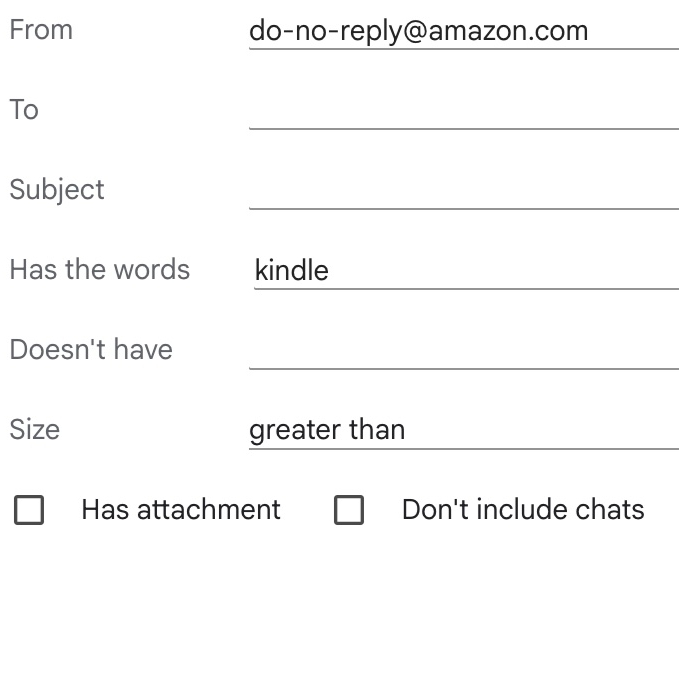
Create Gmail forwarding filters

Use filters so Kindle Scribe notebooks automatically forward to Doc Genie.

Open Gmail filter settings to create Gmail forwarding rules.
Choose "Create a new filter" to start.
Enter "[email protected]" in the From field.
Click "Create filter".
Select "Forward it to" and select your verified Doc Genie email.
Email forward step

Set up Kindle Scribe email forwarding

Trusted by the world's top organizations across industries

ATM Network
AzCapital
Cyber Spider
Event Power
Fleet Alliance
MBTech
Michigan University
National Parks
Pacific Mobile
Poly Technique
Sydney University
Urshan College

Why Kindle Scribe owners automate forwarding

Doc Genie turns Kindle Scribe email forwarding into a hands-off workflow so every notebook hits the right cloud folder without manual typing.

Background
  • Google Drive
  • OneDrive
  • Dropbox

Cloud Storage

Link Google Drive, OneDrive or Dropbox to move Kindle Scribe notebooks both ways, or pull docs down from the cloud to your device.

  • Google
  • App Defense Alliance

CASA Tier 2 Certified

Doc Genie is CASA Tier 2 certified—lab tested and verified by App Defense Alliance, Google’s CASA Tier 2 partner.

  • Kindle
  • Cloud

Unlimited Notebooks

Send every notebook from Kindle Scribe to your linked cloud storage whenever you need to stay productive.

  • Gmail
  • Microsoft Outlook
  • iCloud Mail

Email Forwarding

Skip typing your Doc Genie email—share notebooks straight to your Kindle login address with one tap so they land in Doc Genie ready to use.

  • Cloud
  • Kindle

Cloud Sync

Schedule sync jobs that copy files from cloud storage to Kindle Scribe every hour, each day, or once a week without lifting a finger.

Premium Support

Email us whenever you’re stuck and our premium support team will guide you through every Doc Genie workflow.

Features

Email forwarding features for Kindle Scribe

Integrate with Your Favorite Cloud Storage

Connect Google Drive, OneDrive, or Dropbox to Doc Genie to transfer Kindle Scribe notebooks in both directions. Keep every digital notebook updated with seamless cloud storage integration and Kindle Scribe productivity automation.

Google Drive
OneDrive
Dropbox

Route forwarded notebooks to folders

Tell Doc Genie which Drive, OneDrive, or Dropbox folder should receive every forwarded Kindle Scribe notebook.

Select a short, memorable email address for sending your notebooks.
Pick the cloud storage location where Doc Genie will save your Kindle Scribe notebooks.
Share your notebooks from Kindle Scribe to the Doc Genie email.
Your notebooks will be available in your cloud storage.
Not connected
Not connected
Not connected

Follow the Kindle forwarding checklist

Use the step-by-step visual guide to enable forwarding inside Gmail, Outlook, Yahoo, and other providers in minutes.

Go to your Kindle login email, which can be Gmail, Outlook, Yahoo, or any other email provider.
Set up forward rules to forward your Kindle Scribe notebooks to the Doc Genie email.
Share your Kindle Scribe notebooks to your Kindle login email address with one tap.
Your notebooks will be available in your cloud storage.
Email forward step

Email forwarding automation hub

Automate Kindle Scribe email forwarding so notebooks land in your chosen cloud folders without manual steps.

Kindle Scribe
Doc Genie
Google Drive
OneDrive
Dropbox
FAQs

Email forwarding for Kindle Scribe: FAQs

What is Kindle Scribe email forwarding?

Email forwarding lets you send Kindle Scribe notebooks to your Doc Genie email by sharing to your regular inbox, then Doc Genie delivers them to cloud storage.

Do forwarded notebooks still reach cloud storage?

Yes. Once forwarding is enabled, Doc Genie files the notebook into the Google Drive, OneDrive, or Dropbox folder you selected.

How do I enable forwarding in Gmail or Outlook?

Use the built-in forwarding settings in your email provider, add your Doc Genie address, verify it, and choose to forward Kindle Scribe messages to Doc Genie automatically.

Can I stop forwarding whenever I want?

You can pause or remove forwarding rules at any time from your email provider settings, and Doc Genie will stop receiving new notebooks.

Does forwarding work with multiple cloud accounts?

Doc Genie supports multiple cloud integrations, so forwarded notebooks can be routed to different folders across Drive, OneDrive, or Dropbox.

Do I need a paid plan for email forwarding?

Doc Genie’s Free Plan covers three forwarded notebooks per week. Upgrade to Pro for unlimited forwarding and advanced automation controls.

What if I don't see the answer to my question?

If you don't see the answer to your question, please email us at [email protected] and we'll get back to you as soon as possible.

Start Kindle Scribe email forwarding today

Connect Doc Genie, enable forwarding once, and deliver every Kindle Scribe notebook to your cloud folders automatically.